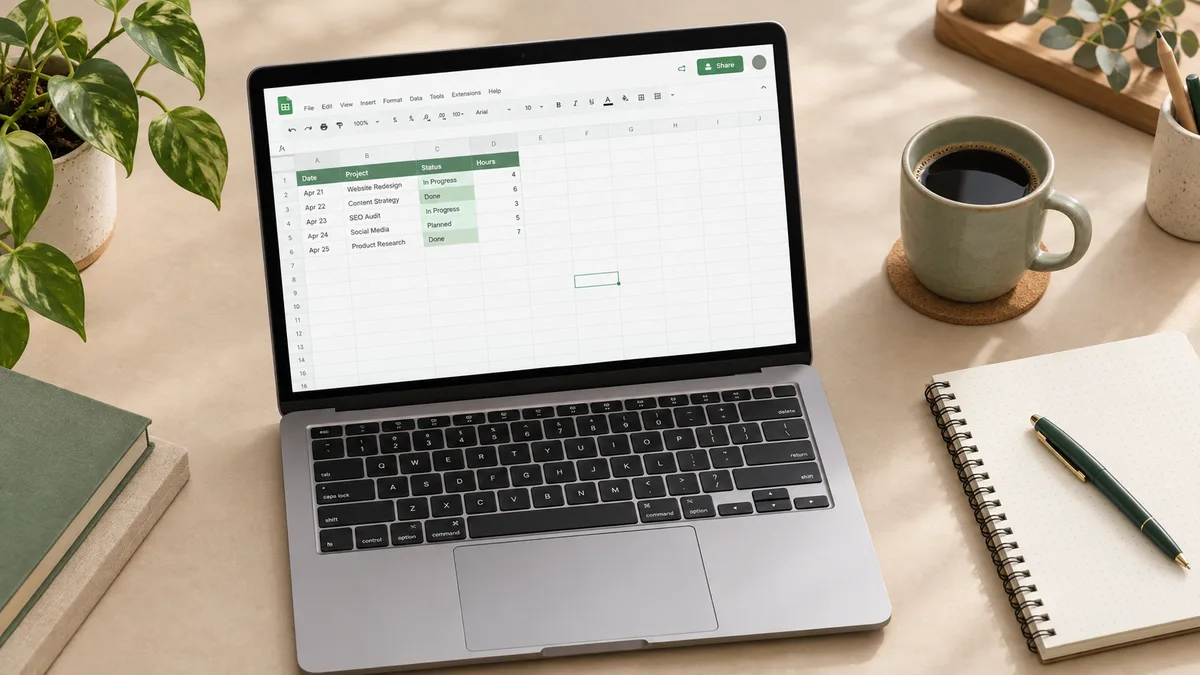
Google Sheets looks empty and a bit intimidating the first time you open it. Give it one evening and it becomes the most useful free tool you own. This guide starts from a blank tab and ends with you building a small working budget - the same skills behind every template we sell.
Google Sheets is a spreadsheet that lives in your Google account instead of on your computer. If you have a Gmail address, you already have it - go to sheets.google.com and it is there, free, with nothing to install. Every change saves itself, and the same file opens on your phone, your laptop and any borrowed computer.
A spreadsheet is just a grid. Columns are letters (A, B, C), rows are numbers (1, 2, 3), and each box is a cell with an address like B4. You can type three kinds of things into a cell: text, numbers, or a formula that calculates something. That third kind is where the magic lives.
Click a cell and type. Press Enter to move down, Tab to move right. Made a mistake? Ctrl+Z (or Cmd+Z on Mac) undoes it, and Google keeps a full history under File, Version history - you can go back to any earlier state of the file, ever. This one feature means you can experiment without fear.
To try it now: open a blank sheet, type "Item" in A1 and "Cost" in B1, then list three things you bought this week with their prices. Congratulations, you have a dataset.
A formula starts with an equals sign. In B5, type =B2+B3+B4 and the sheet adds your three costs. Change any price and the total updates itself. Nobody recalculates anything by hand - that is the whole point.
The three formulas you will use weekly: =SUM(B2:B10) adds a whole column range. =AVERAGE(B2:B10) gives the mean. =COUNTA(A2:A10) counts how many rows have something in them. Type = and Google suggests functions as you go, with examples inside the sheet itself.
One step further: =IF(B2>500,"big","small") labels each purchase. Formulas can read other cells and make decisions - every dashboard in our templates is built from chains of simple formulas like this.
Select the header row and press the bold button. Click the paint-bucket icon to give headers a background colour. Use Format, Number, Currency so money looks like money. Freeze the header row (View, Freeze, 1 row) so it stays visible while you scroll.
Resist the urge to colour everything. One header shade, borders where they help, generous empty rows between sections - a sheet you can read is a sheet you will keep using.
Once your list passes twenty rows, select it and use Data, Create a filter. Little dropdown arrows appear on each header. Now you can show only this week's purchases, or sort by cost from highest to lowest, without touching the data itself. Filters are how a boring list becomes an answer to a question like "where did my money go in October?"
The green Share button lets specific people view or edit your sheet. Templates work through a special copy link: when someone shares a file with "anyone with the link can view" and you open their copy link, Google adds a duplicate to your own Drive. Your copy is fully yours - the original owner never sees your data.
That is exactly how our templates arrive: you click one link, Google asks "Make a copy?", and your private version lands in your Drive.
Once the basics feel normal, the most useful next steps are: conditional formatting (cells that turn red when a budget is overspent), charts (Insert, Chart - a monthly spending bar chart takes one minute), and data validation (dropdown lists inside cells, which is how our trackers keep statuses tidy).
And if you would rather skip the building and start with something tested: our templates are pre-built versions of everything above, with the formulas already chained and a guide on the first tab.
Yes, completely, with any Google account. Storage for Sheets is part of your free 15 GB of Google Drive.
No. If anything, Sheets is the gentler start. The core skills - cells, formulas, filters - are the same in both, so learning Sheets makes Excel easier later.
Yes, with a one-time setup: in Google Drive settings, turn on offline mode. Edits sync when you are back online.
Your sheets are private to your Google account until you share them. When you copy a template from us, we cannot see your copy or anything you type into it.
budget spreadsheet templates · a monthly budget that does the maths for you · ready-made planner templates
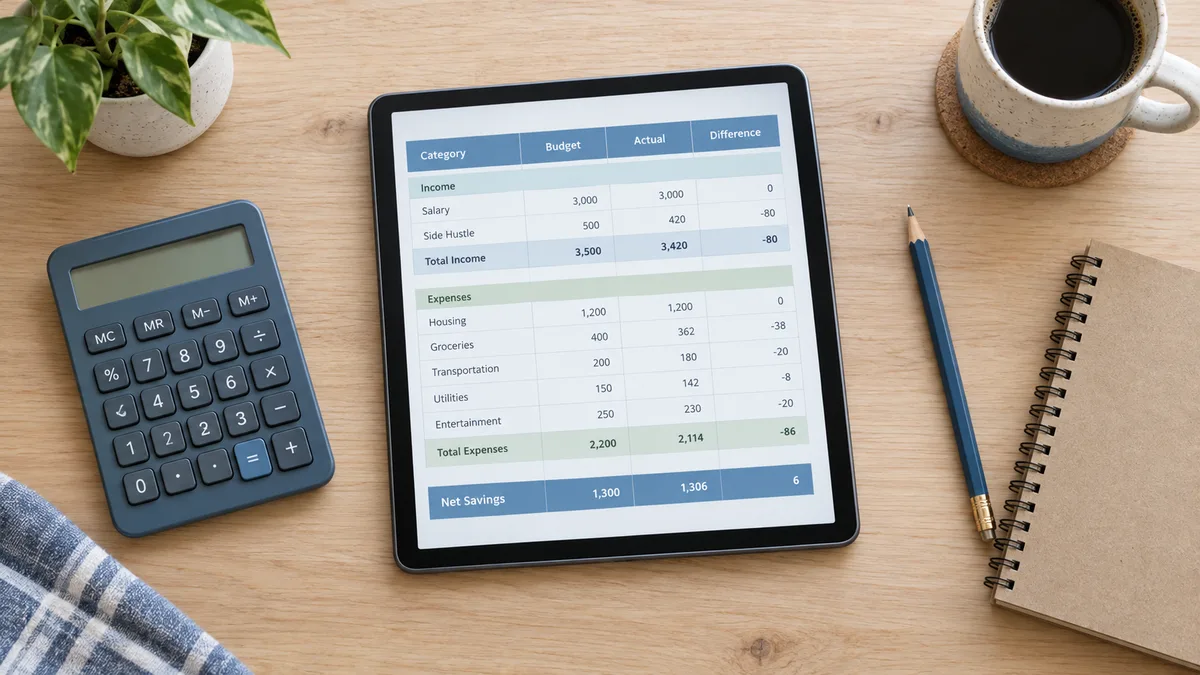
How to make a spreadsheet from a blank grid: plan the columns, add formulas, format it clean, and turn it into a reusable template. A 15-minute build.

How to budget money with a method that survives real life: list honestly, pick limits you can keep, log weekly. With a worked example on a normal salary.